Google Business Profile Hours Checklist: Regular, Holiday and Website Hours
It's early October. You pull up a local hardware store on Google. The profile says it closes at 6. The website footer says 5:30. Nothing you can see mentions Thanksgiving. Which one is right? You don't know, and that's the point. A Google Business Profile hours check compares three things: the regular hours on the profile, any holiday (special) hours, and the hours on the business website. You write down what each one says, mark where they differ, and ask the owner which is true before anyone changes anything. You are collecting facts, not proving a problem.
What an hours check actually covers
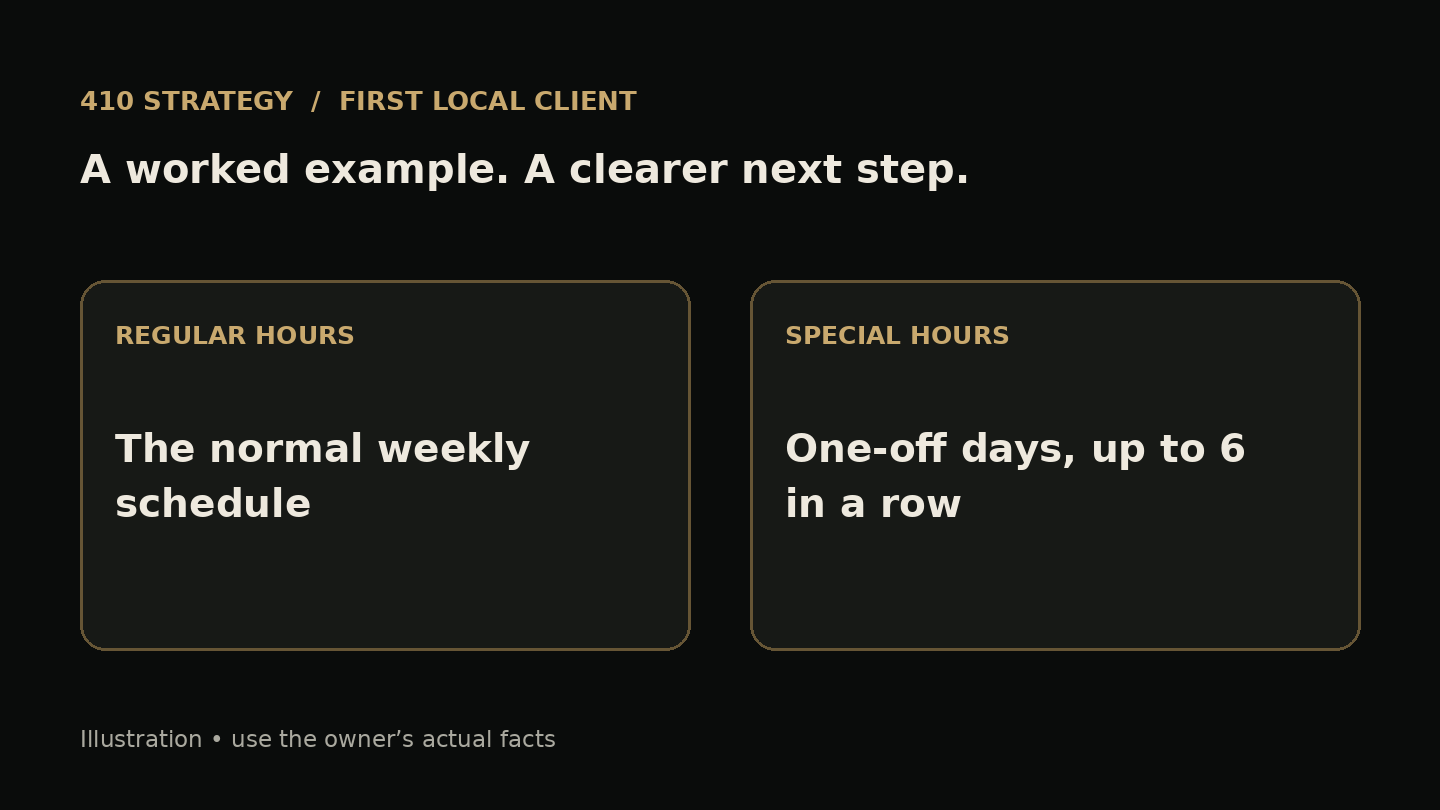
Regular hours are the weekly schedule on the profile, Monday through Sunday. Special hours are Google's term for one-off changes such as holidays, events or other unusual days. Google's help page says special hours are for temporary changes or closures of up to 6 days in a row, and setting them leaves the regular hours alone. The website is whatever the owner published: a footer, a contact page, a booking page. Some businesses also use what Google calls More hours, for things like delivery, takeout or senior hours. If you see them, add them to your list. That is the whole scope. One business, three sources, one owner to confirm.
Step 1: Copy the regular hours exactly
Open the business on Google Search or Maps and write each day exactly as shown, including split days such as 8 to 12 and 1 to 5. Don't round and don't tidy. If Saturday says 9:00 AM to 4:00 PM, write that. Take a screenshot and put today's date in the file name. The date matters because profiles change, and you want to show the owner what the listing said on the day you looked, not what you remember.
Step 2: List the holidays ahead and check each one
Write down the dates this business might treat differently over the next few months. For a typical U.S. shop in Q4 that could be Thanksgiving (Thursday, November 26, 2026), the day after, Christmas Eve, Christmas Day, New Year's Eve and New Year's Day. Add any local event the business might close for. Google's help suggests confirming holiday hours even when they match regular hours, so that customers can see they were checked.
Here is the catch. Google says special hours appear to customers only for the designated days, so from the public side you may not see whether future holiday hours have been set. A blank is not an error. It is a question for the owner. Also note any long closure the website mentions, such as a two-week winter break. Google says closures of 7 or more days in a row should use Temporarily closed, not special hours.
Step 3: Compare against the website
Find every place the website states hours: footer, contact page, booking tool, a holiday banner. Write them in the same format as the Google column so the two line up row by row. Then mark each row with one of three words: match, different, or not listed. Do not decide which source is correct. An old website can be wrong. So can a Google profile. Only the owner knows the hours the doors are actually open.
Illustrative example: a made-up hardware store
Illustrative example only. The business and every hour below are invented. Google profile: weekdays 8:00 to 6:00, Saturday 9:00 to 4:00, Sunday closed, nothing visible for Thanksgiving. Website: weekdays 8:00 to 5:30, Saturday 9:00 to 3:00, Sunday closed, and a line reading Closed Thanksgiving Day.
What you write: Weekdays, profile 6:00 close, website 5:30 close, different. Saturday, profile 4:00, website 3:00, different. Sunday, closed on both, match. Thanksgiving, website says closed, profile shows nothing from public view, ask. What you don't write: that the store is losing customers, missing calls or ranking lower. You have no evidence of any of that. You have two sources that disagree, and that is enough for an honest question.
The owner-confirmation worksheet (copy this)
Open a blank spreadsheet or doc and make seven columns: Day or date. Google profile shows. Website shows. Match, different or not listed. Owner confirms actual hours. Who updates it and where. Date updated and rechecked.
Add rows for Monday through Sunday. Then add one row per upcoming holiday from Step 2. Then add one row for each type of More hours the business uses, such as delivery or pickup. Fill in the first four columns yourself. Leave the Owner confirms column empty. Only the owner fills it in or tells you what to write. The last two columns turn the sheet into a record: who changed what, and the date you looked again to make sure it shows correctly.
If you have a genuine reason to contact the owner, keep the first message short and factual: Hi [Name], I was looking at [Business] online and noticed your Google profile and website list different weekday closing times (6:00 and 5:30). I don't know which is current. Want me to send the one-page comparison? Either way is fine. If they say no or don't reply, stop there. One polite note is the whole move.
Making the fix the right way
Google Business Profiles are free. If an owner hires you, your fee pays for your time and care, and Google's third-party policies say you must tell clients in writing that the profile itself costs nothing. Get the owner's written okay before you touch anything. The owner keeps ownership. Ask them to add you as a manager, never share passwords, and tell them every change you made.
For holiday hours, the owner or manager goes to Edit profile, then Hours, then Special hours, picks the date, and either enters hours or checks Closed. Google notes that special hours only show when the business is set to Open with main hours. For unusual overnight schedules, follow Google's special-hours instructions rather than guessing how to enter the dates. Website fixes may belong to whoever runs the site, so the Who updates it column matters.
What this check can't tell you
It can't tell you that a mismatch cost the business a single sale. It can't tell you how many people saw the wrong hours. Because future special hours are often hidden from the public view, it can't always tell you whether holiday hours were already set. And Google draws on other sources, including suggested edits, so a correct listing today should be rechecked after any change. Nothing here promises better rankings or more calls. What it gives you is a clean, dated record and one clear question for the owner.
Your next step
Pick one local business you already have a reason to talk to: a place you shop, a friend's shop, a family member's office. Build the worksheet for it today. It should take less than half an hour. If the owner wants help, you will need to know how to scope the job, describe the fee plainly and hand over proof of the work. That is the next skill to learn.
Google Business Profile Hours Owner-Confirmation Worksheet
Copy these fields into your notes and fill them with the owner’s actual facts.
- Day or date (Mon–Sun, then each upcoming holiday, then each More hours type)
- Google profile shows (exact hours copied, screenshot date)
- Website shows (exact hours plus the page where you found them)
- Match / different / not listed
- Owner confirms actual hours (owner fills or dictates, never you)
- Who updates it and where (Google special hours, regular hours, website, Temporarily closed)
- Date updated and date rechecked
Sources and further reading
Keep working on your first client
Ready to scope your first job?
The worksheet finds the question. The $7 GBP Flip PDF walks you through what comes after: describing a small profile job, setting a clear scope, getting the owner's permission and handing over proof of what changed. Google profiles are free. Your fee pays for the work.
See the guideWant more field notes like this?
Join the list for occasional tips on finding, pricing, and delivering your first local marketing job. The free checklist is available now below.
Download the free checklist — no signup needed